Veterinary clinic AI training: a step-by-step guide
Train your veterinary clinic AI in 5 steps: knowledge base, appointments and vaccine reminders, persona, vet-safe response rules and past conversations.
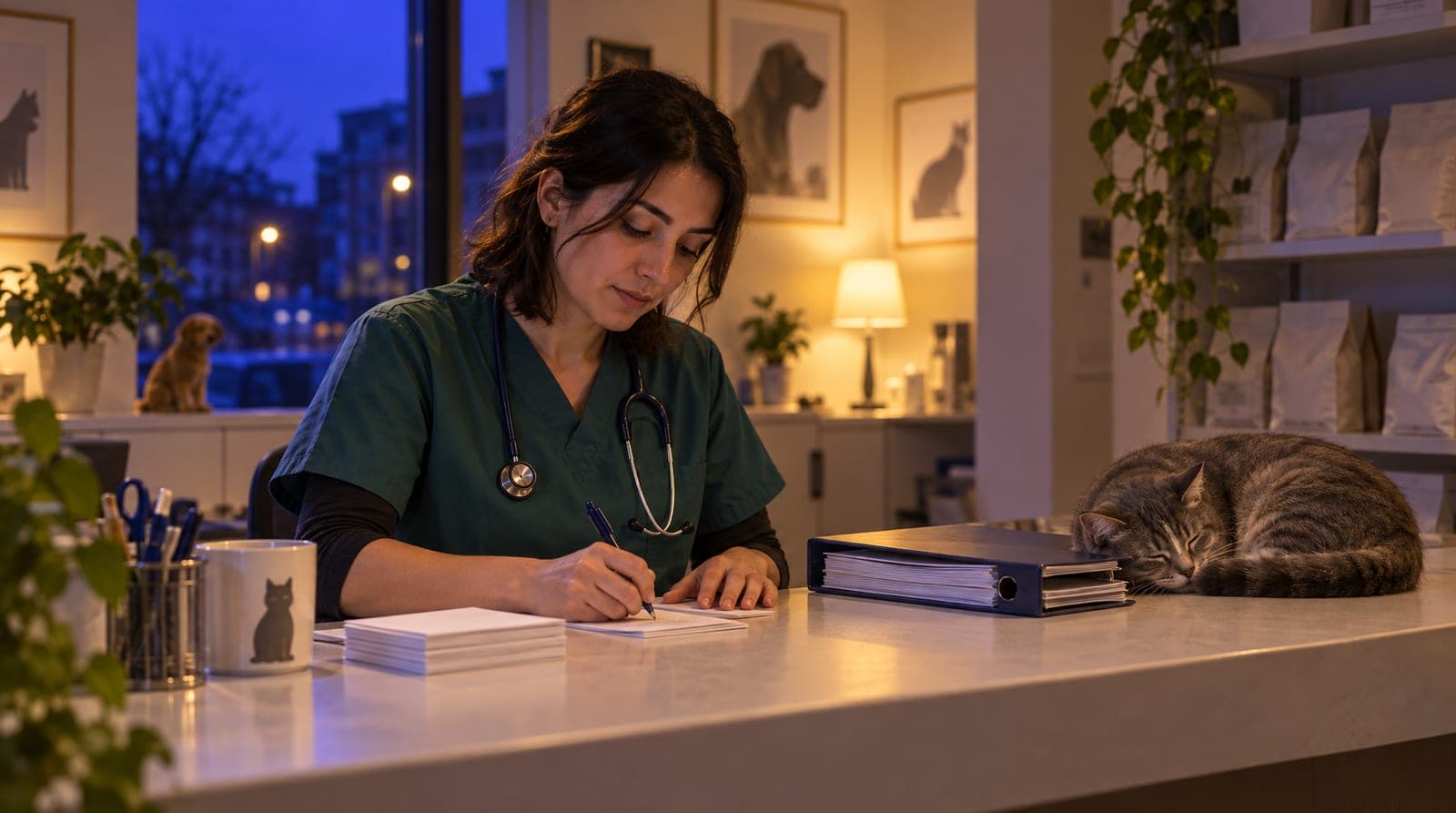
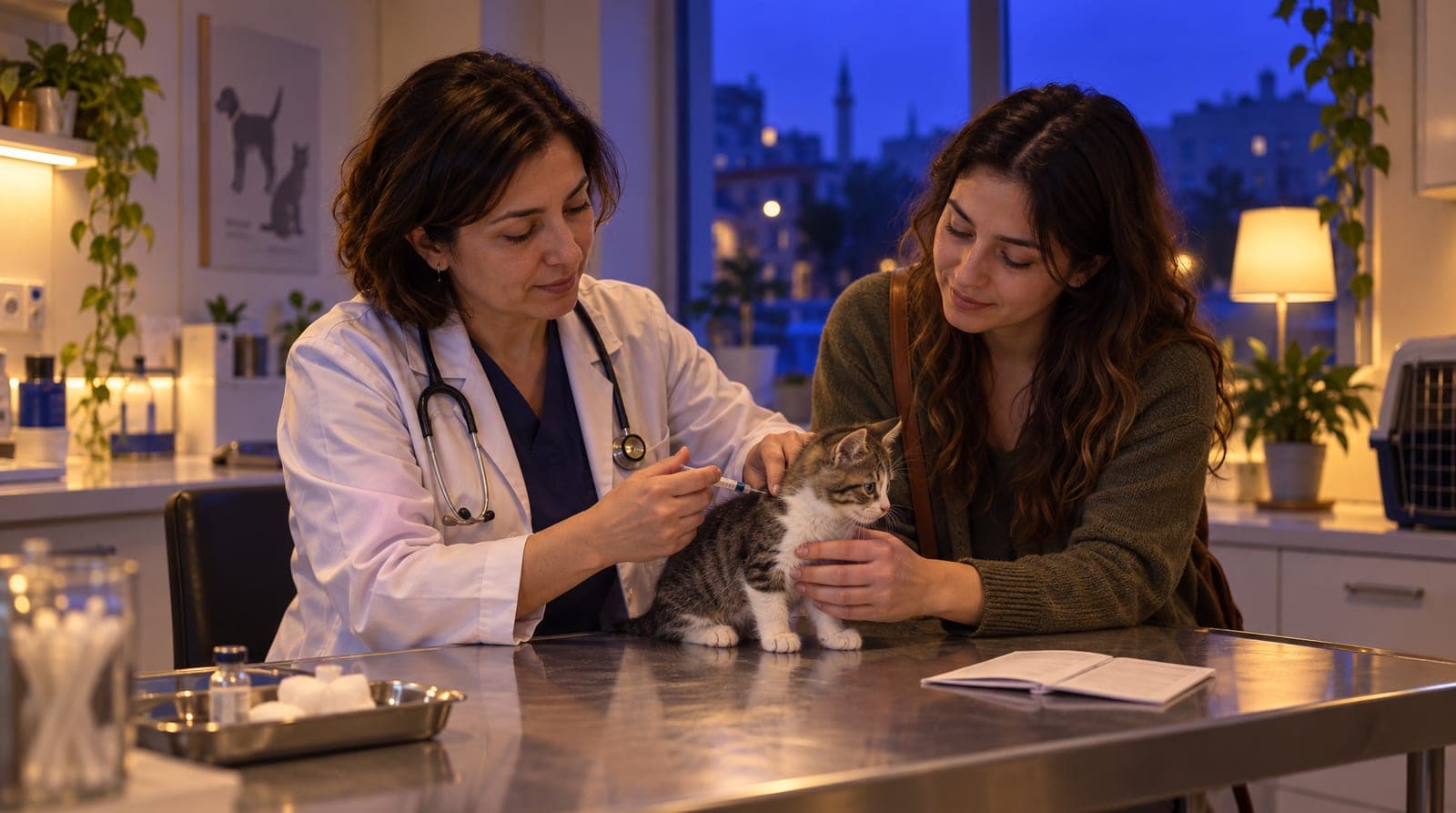
A veterinary clinic’s inbox always fills up with the same questions: "When should my cat’s combination vaccine be due?", "When do you have an opening for spaying?", "My dog is vomiting, can you see him urgently?", "Do you do passport and microchip procedures?". Cat, dog, bird, exotic: it doesn’t matter; the same twenty questions repeat dozens of times a day. The phone rings while reception is in the examination room, an Instagram message goes unanswered for hours, the owner of a pet due for its vaccine forgets, and the next dose is missed. Every appointment request answered late goes to another clinic.
inTusell takes over this load. But to do that, it first needs to learn your clinic, your services, and your operating routine. This article explains how a veterinary clinic trains the inTusell AI from scratch, step by step. This is the veterinary chapter of our sector-based "how to train your AI" series, and it is the series’ main article.
Quick answer
A veterinary clinic trains inTusell from the panel in 5 steps: knowledge base, appointment types and working hours, persona and calm tone, response rules and veterinary limits, and past conversations. Then you review replies, turn fixes into rules and open your channels. The AI does not diagnose or recommend medication; it leaves medical questions to the vet.
Why does training matter?
inTusell is not a simple chatbot; it is an AI sales assistant and CRM that answers messages on WhatsApp, Instagram and web chat, books appointments and opens orders, and follows each customer through the sales pipeline. In a clinic it works like an experienced receptionist and pet owner coordinator. A good coordinator does not know your clinic on day one either. Training makes the AI do two things correctly: give the right information (your services, working hours, vaccine schedule logic) and stop at the right boundary (leave medical matters to the veterinarian, never diagnose).
An untrained assistant guesses on a topic it doesn’t know. In veterinary care, guessing is dangerous. A sentence like "give the vomiting dog this" can harm the animal and violate regulations at the same time. A well-trained assistant stops when it doesn’t know and directs the owner to the physician, and in an emergency it calls the animal in to the clinic without delay.
Who is it for?
This guide is for veterinary teams whose inbox is dominated by appointment and vaccine requests:
- Small-animal clinics and veterinary practices focused mainly on cats and dogs
- Clinics with appointment-heavy procedures such as vaccines, spaying, microchipping, and passports
- Centers that offer pet grooming, boarding, and polyclinic services together
- Specialist clinics working with exotic animals, birds, and reptiles
- Teams receiving dozens of appointment and vaccine questions a day from Instagram and WhatsApp
- Clinics chasing vaccine/check-up follow-ups by hand and losing customers to missed doses
You don’t need a technical team; all of the steps below are completed from the panel, without writing code.
The structure of training: 5 core steps + 2 continuous steps
Splitting the training into two groups makes your job easier. The first 5 core steps get the assistant up and running; these are the one-time part of the setup. The 2 continuous steps that follow (reviewing and turning fixes into rules, and opening channels) are the ongoing part that you sharpen as you use the assistant.
1. Upload the knowledge base
The foundation of training is the knowledge base (RAG). In the panel’s Knowledge Base section, you upload all of your clinic’s textual information; each time the AI generates a response, it automatically searches these sources and uses only the information written there.
Supported source types:
| Source type | Typical content | Example |
|---|---|---|
| Service descriptions, pre-information | "Pre-spaying preparation.pdf" | |
| Excel / CSV | Service list, working hours, team | "Services and durations.xlsx" |
| Web URL | FAQ and service pages on your site | "/frequently-asked-questions" |
| FAQ suggestions | Your customers’ most frequent questions, added once you approve | "Should I bring my pet on an empty stomach before surgery?" |
Every file you upload is automatically chunked and made searchable with pgvector. If you upload a "pre-spaying preparation" document and the owner then asks "Should I feed my pet before the operation?", the AI finds the right paragraph and answers from it.
What you must definitely upload: service and procedure descriptions (vaccines, spaying, microchipping, passports, check-ups), pre/post-procedure preparation instructions, working hours, team information, payment/communication policy, and the most frequently asked questions. An important limit: the knowledge base is not for diagnosis-containing text. The AI uses the information here to answer "what do you offer, how do you prepare" questions; it leaves medical questions like "my pet has this symptom, what should I do?" to the veterinarian.
2. Set up appointments and vaccine/check-up reminders
The knowledge base explains "what you offer"; the appointment system lets the assistant give an actual time. This step has a second half too: vaccine and check-up reminders. In the panel you first define three things:
| Definition | Content | Example |
|---|---|---|
| Appointment types | Service + duration (+ break/buffer if any) | "Examination 20 min", "Vaccine 15 min", "Spaying 60 min" |
| Working hours | Opening/closing for each day of the week | Mon-Sat 09:00-19:00, Sun closed |
| Exceptions | Holidays, public holidays, special days | "Public holiday: closed" |
Once these three are defined, the AI no longer gives times out of thin air; it suggests appointments based on your working hours and full slots. The system prevents two appointments from landing on the same time (double-booking). If Google Calendar is connected, the appointment is copied one-way to the team’s calendar.
The assistant sends an automatic reminder 1 day and 2 hours before every appointment; the 1-day message asks for confirmation ("1 Yes · 2 Reschedule · 3 Cancel"). For appointments that are costly to miss, such as spaying and vaccines, fewer owners fail to show up. For vaccines and periodic check-ups you set a check-up interval (days) on the appointment type: once the appointment is marked "Attended", the next check-up invitation is queued at that interval, and when the day comes a fixed service message goes out: "It is time for your Combination Vaccine check-up. Write us a day that suits you and we will arrange it." (beta). If the owner has booked again in the meantime, the invitation is dropped. Reminders run on paid plans.
We’ve gathered all the details of the appointment engine (durations, conflict prevention, reminder timing, reducing no-shows, and calendar sync) in a separate article: veterinary appointment and vaccine/check-up reminder automation. You can also see the service and appointment capabilities on the veterinary solution page.
3. Set the persona and tone
You taught the AI what to say in the first two steps; now you’ll define how it will say it. There are two settings in the panel:
- Assistant name (
ai_persona_name): The name it will introduce itself with to the pet owner. Most clinics choose a reassuring name. - Tone (
ai_tone): For veterinary, the suggested tone is warm but calm and reassuring; understanding toward an anxious owner, measured and true to its word. Emoji is used sparingly and sales pressure is kept low.
Veterinary mode is deliberately cautious, just as it is in health. Even the greeting message directs the owner to the right place; the ready-made opening reads like this: "Hello, welcome. I can help with appointments, vaccine tracking and general information for your companion. How can I help?" Medical questions always go to the vet.
A note on anxious owners: Someone whose pet is sick writes with worry. The assistant steadies that tone, but it never produces a comforting or diagnostic sentence like "don’t worry, it’ll pass." It takes the situation seriously and directs the owner to an appointment, or straight to the clinic if it’s an emergency.
4. Define the response rules and veterinary limits
The persona defines "who it is," and the response rules define "how it will behave." This step does two jobs at once: it passes on your coordination discipline and draws the veterinary limits. You add rules through the AI Manager Chat in plain language, just as you would brief a teammate.
Typical rules for veterinary clinics:
- "Before the appointment, ask about the animal’s species, age, and the request, but do not diagnose."
- "Do not recommend medication/doses to an owner describing symptoms; take the situation seriously and direct them to an examination, and if it’s an emergency, call them in to the clinic immediately."
- "Do not guarantee outcomes; do not use phrases like 'guaranteed to pass/guaranteed treatment.'"
- "When asked about vaccine timing, you may state the general schedule logic, but leave the individual decision to the physician and direct them to an appointment." (Can be changed according to your clinic policy.)
The most common mistake in veterinary care is putting the animal at risk and running afoul of regulations with a single boundary-crossing sentence. In inTusell, this boundary does not rest solely on the rules you write. In veterinary mode, the AI is given the instruction "do not diagnose, do not recommend treatment/medication, do not state a dose" from the start as a sector instruction. On top of that, an output filter (a pattern scan plus a second-model check) scans for and flags misleading phrases such as "certain cure" or "guaranteed treatment"; it is a watcher that detects and flags, not a wall that blocks everything. The two layers reduce the risk but are not a guarantee; on sensitive matters the vet has the last word.
To compare two AI tones, you can use the A/B test, which is in beta: for example, a more formal and a friendlier tone run side by side, each on half of the replies, and the experiment card shows which one leads to more wins. Today only the tone changes; the content and the rules stay the same.
5. Teach from past conversations
This is the step that moves training from "good" to "specific to your clinic." In the panel, you upload audio recordings of your past conversations (MP3, MP4, WAV, M4A) and mark each one as Won or Lost, whether the owner came to the appointment and had the procedure done, or was lost.
The system uses these recordings in two ways:
| Recording type | What the AI learns |
|---|---|
| Won conversations | Owner coordination: asking the right question, directing to an appointment at the right moment |
| All conversations | Service, process, and FAQ information (fed into RAG) |
This way, the AI learns how your best coordinator put the anxious owner at ease and moved someone who said "let me think about it" toward a vaccine/check-up appointment. The KVKK side is protected: PII (personal data) masking and explicit consent are applied to the uploaded recordings. This step is not mandatory, but don’t skip it; the knowledge base teaches the AI "what" it knows, and past conversations teach "how you coordinate."
6. Review and turn fixes into rules (ongoing step)
The first five steps get the AI working; what comes next sharpens it to your clinic. You check replies in AI Test by asking questions as a pet owner would, and in real conversations under Conversations.
When you see a wrong or missing answer, make the fix permanent. Say the AI described the pre-spaying preparation instruction incompletely: add the instruction to the knowledge base. If it called a service by the wrong name or steered toward an appointment too early, write a rule in AI Rules or tell the AI Manager Chat in a plain sentence ("ask about the animal’s species and age before talking about price"). For a period when you want to see every reply before it goes out, put the account in Full approval or one conversation in Approval mode.
The Label Manager is a separate thing: customer satisfaction replies, the outcome of handed-off conversations, won/lost classification and labels your team adds by hand land there. You approve, reject or edit them; corrections are kept as a quality record, but they do not change how the AI writes replies today. What changes behavior is the knowledge base and the rules. We recommend a short daily look in the first weeks.
7. Open the channels (ongoing step)
Once training is ready, you put the assistant in front of pet owners. inTusell gathers all channels in a single inbox: Instagram DM, Instagram comments, WhatsApp, Telegram, and web chat.
How you open each channel:
- Instagram: connected through Meta login; you pick your Facebook Page and Instagram account. The account must be a professional account linked to a Facebook Page.
- WhatsApp: under My business › Channels › Messaging Channels you click "Connect with QR" and scan the code on your phone under WhatsApp › Settings › Linked Devices › Link a Device; if you have no second screen, "Link with phone number" gives you an 8-character linking code for your number that you type into the same menu. The number stays the same and no Meta Business approval is required. The official WhatsApp line (Cloud API) opens after Meta approval.
DM replies are already on once Instagram is connected. Comment replies have their own switch on the Instagram card ("Instagram comments"), and it is on by default. For example, if you want to answer the "price?" comments under a vaccine campaign post by hand for a while, turn that switch off. If you connected Instagram before September 24, 2026, you need to reconnect it once for comments.
There are three account-wide AI modes. Intern sends replies itself and asks you before a cancellation or refund. Senior also handles cancellations and refunds itself. In Full approval, every reply on WhatsApp, Instagram and Telegram, and any action the AI would take, waits for your approval in Decisions › Approval Queue; a new healthcare account starts in this mode. Whatever the mode, when the AI is unsure or a medical decision or emergency comes up, it hands the conversation to the team; the handoff lands on the Decisions screen with the full history. For the details: Instagram and WhatsApp automation for veterinarians.
How long does training take?
How long it takes depends mostly on whether your documents are ready. The steps of a working setup:
- Uploading the first files to the knowledge base
- Appointment types and working hours
- Persona, tone, and first response rules
- Connecting channels
But there is no moment when "training is done." Over the first weeks, adding what you notice in AI Test and in real conversations to the knowledge base and the AI rules sharpens the assistant to your clinic, and past conversation recordings and A/B tests keep improving it after that. Setup happens once; mastery is continuous.
What it isn’t
Putting inTusell in the right category matters, because the wrong expectation leads to the wrong setup.
- It is not a simple chatbot. It does more than answer messages: it books appointments, sends reminders and check-up invitations, and follows the owner through the sales pipeline.
- It is not a veterinarian or a diagnostic tool. It does not diagnose, recommend treatment or medication, or state a dose; it directs medical questions to the veterinarian and the clinic.
- It is not clinic management/patient record software. It does not keep medical records; it is an appointment, vaccine/check-up reminder, communication, and pet owner coordination layer.
- It is not a marketing tool that promises outcomes. Phrases like "certain outcome/guaranteed treatment" are prohibited, and the AI is constrained so it will not produce them.
- It is not a waitlist manager. It does not keep a queue/list; when a vaccine or check-up comes due, it sends a check-up invitation only to the owner who received that service.
Frequently asked questions
How long does veterinary clinic AI training take?
A working setup comes down to these steps: uploading the knowledge base, appointment types and working hours, persona and tone settings, and a few response rules. How long it takes depends mostly on how ready your documents are; the real refinement comes in the first weeks, as you add what you notice in AI Test and in real conversations to the knowledge base and the AI rules. Training is not one-time; it is continuous.
Does the AI give pet owners veterinary medical advice?
No. In veterinary mode the AI does not diagnose, recommend treatment or medication, or state a dose; it directs medical questions to the physician (the veterinarian). The primary safeguard is the "do not give diagnosis/treatment advice" instruction that the sector mode gives the AI; in addition, an output filter scans for and flags misleading phrases such as "guaranteed to pass" or "guaranteed treatment."
Do I need technical knowledge to train the AI?
No. All training is done from the panel; no code, API key, or developer is required. You upload PDF/Excel files to the knowledge base, enter appointment types and working hours, and write response rules in plain language. You connect Instagram through Meta login and WhatsApp with a QR code or a linking code for your phone number.
Does the AI send vaccine and check-up reminders on its own?
Yes. An automatic reminder goes out 1 day and 2 hours before every appointment. For vaccines and check-ups you set a check-up interval (days) on the appointment type; once the appointment is marked "Attended", the next check-up invitation is queued at that interval (beta). Reminders run on paid plans.
Does the AI quote an examination or vaccine fee?
It behaves according to your clinic policy. In a typical setup it defers unsettled fees until after the examination or directs the customer to the live team; it does not invent a price it is unsure of. When it does not know, it stops and hands off to the physician or the team.
Does the AI create the appointment on its own?
Yes. The AI recommends the appropriate service and creates the appointment while accounting for working hours and full slots; double-booking the same time is prevented by the system. In cases requiring a medical decision or in emergencies, it hands the conversation off to the live team.
Next step
You’ve trained your assistant; next comes using it in daily operations. The next article in the series shows how the inTusell you trained runs on a real workday: incoming appointment requests, vaccine reminders, calendar, reducing no-shows, and handing off to the team. Continue straight from there: how a veterinary clinic uses inTusell.
This series is part of the health cluster; for the aesthetics side, take a look at aesthetics clinic AI training and the general clinic AI training articles, and if you’re curious about a different sector, check out travel agency AI training.
If you’d like to see it live before starting the setup, use Get a demo and we’ll open your panel together in a short session, or write to hi@intusell.com. For package and quota details, you can check the pricing page, and for other guides, take a look at the all articles list.
You read the blog. Now see it live.
Test inTusell live with your own sector scenario in a 20-minute demo.