
Hotel and stay guide
To use inTusell in a hotel, create your account, pick the "Hotels & Accommodation" industry, connect WhatsApp and Instagram, turn on the stay module and add your property and room types. The AI finds a free room and quotes prices only from a rate plan. Rate plans cannot be entered in the panel today, so the AI never guesses.
Who this is for
- Hotels, guesthouses, aparthotels, villas, hostels and resorts
- Front desk and reservation teams that receive guest questions on WhatsApp or Instagram
- Businesses with more than one property that want them all in one account
- Properties that want to follow in-stay guest requests in one place
Before you start
- A phone running your business WhatsApp
- A list of your properties and room types, with the room count and maximum occupancy of each room type
- For Instagram: a Professional account linked to a Facebook Page
Sign up and the setup wizard
The wizard has three steps: Company, Channel and Ready. You can skip the channel step and finish it later in the panel.
- 1
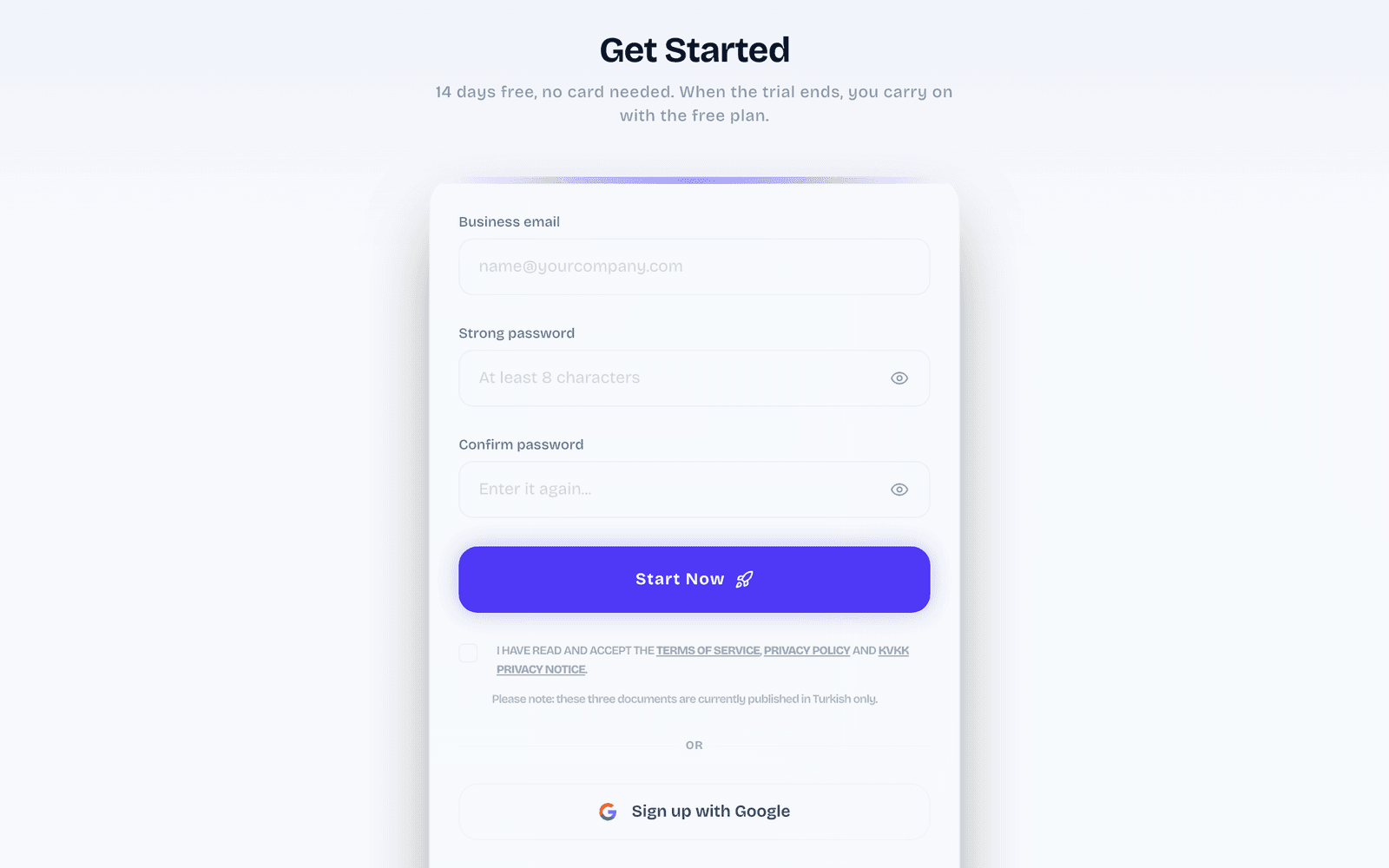
Create your account
Sign up on intusell.com. Your account opens with a 14 day trial.
- 2
Tell us about your company
On the "Company" step enter your business name and pick "Hotels & Accommodation" under "Industry". Add your website if you have one: the AI reads it to learn your products, prices and FAQs.
- 3
Connect a channel or do it later
On the "Channel" step pick WhatsApp, Instagram or Web chat. For WhatsApp click "Show the QR code" and scan it with the phone that runs your business WhatsApp; for Instagram click "Connect Instagram" and approve on Facebook; for web chat copy the one-line code (this also turns on your web chat) and paste it into your site. "I’ll connect later" moves on without a channel.
- 4
Review how the AI will talk
The "Ready" step shows the tone, the first message and the priorities of your AI. "Go to the dashboard" opens the panel; "Edit" opens the AI settings.
Connect your channels
- 1
WhatsApp with QR
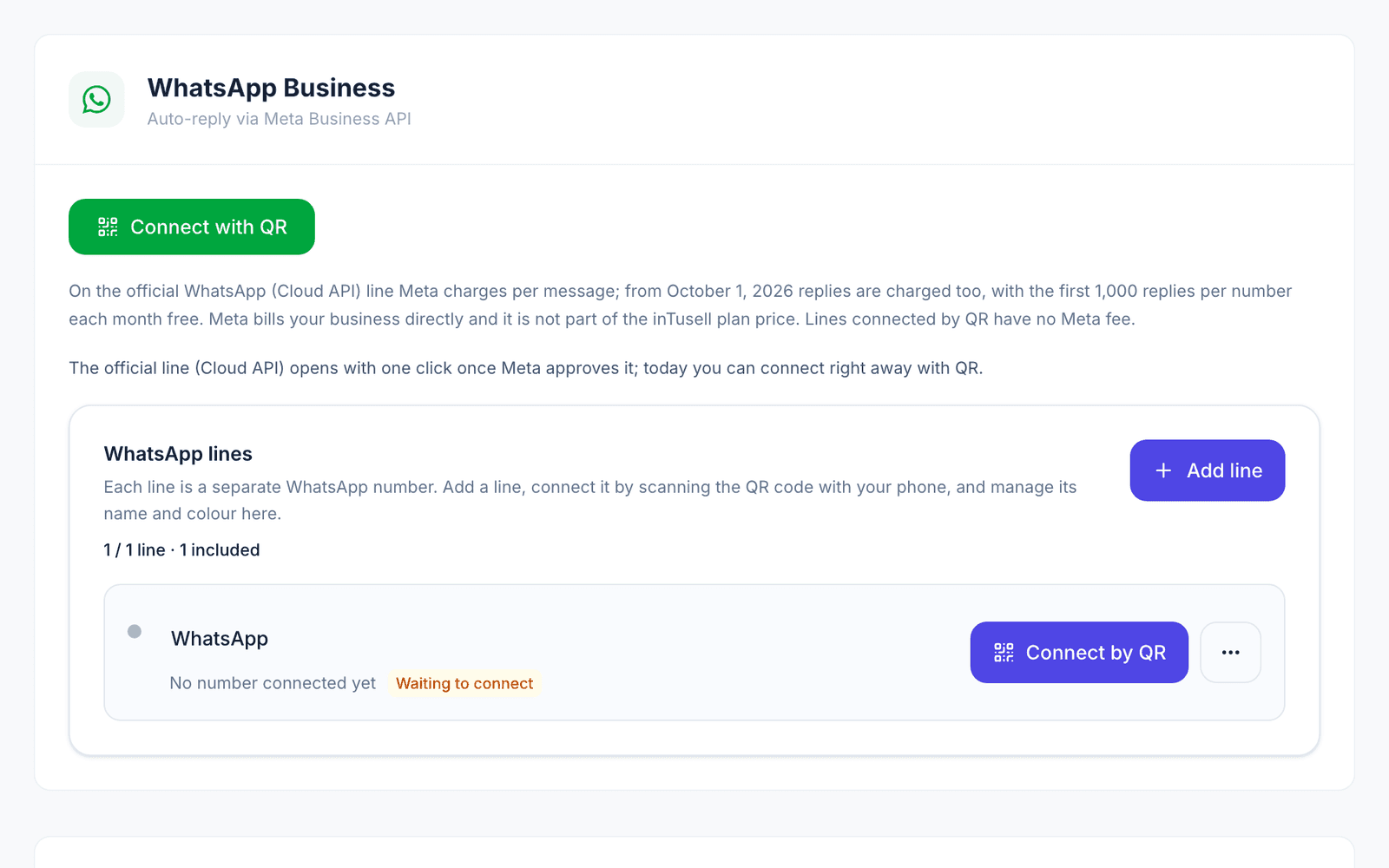
Go to My business › Channels › Messaging Channels and click "Connect with QR". On your phone open WhatsApp › Settings › Linked devices › Link a device and scan the code. Your phone keeps working alongside the panel. The official WhatsApp line (Cloud API) opens after Meta approval; today QR is the way to connect.
- 2
Instagram through Meta
On the same page, in the "Meta Platforms" card, click "Connect All" or the "Instagram" tile. Log in with the Facebook account that manages your business Page. In the Meta window tick your Page and your Instagram account, then approve.

- 3
Check the connection
After you return to the panel the Instagram card shows as connected. If a warning appears, it says what is missing and has a "Reconnect" link.
Turn on the stay module
The stay module does not switch on by itself. Its settings are in the "Stay Module" card on My business › Business Info.
- 1
Enable the module
Tick "Enable the stay module (free on all plans)". Once it is on, the Stays room appears in the menu.
- 2
Pick the payment method
Under "Payment method" pick "IBAN / Bank transfer (no integration needed)", "iyzico (card)" or "Both". Enter your IBAN or your property’s iyzico keys, add your legal details and click "Save".
Properties and room types
- 1
Add your property
In the "Properties & Rooms" tab of the Stays room, enter the property name and city, pick its type (hotel, guesthouse, aparthotel, villa, hostel or resort) and click "Add". Add each property separately if you have more than one.
- 2
Enter room types
Under the property, name the room type. Fill in "Max guests" (it starts at 2) and "Number of rooms" (it starts at 1), fill in "₺/night" too and click "Add room type". The room count is used for availability. "₺/night" shows next to the room type in the panel; the AI does not tell guests this figure and quotes prices only from a rate plan.
Fill the knowledge base
The AI answers from your knowledge base. Add your room features, board options, check-in and check-out times, cancellation terms, facilities and FAQs.
- 1
Open the Knowledge Base
Go to My business › Knowledge › Knowledge Base.
- 2
Add your sources
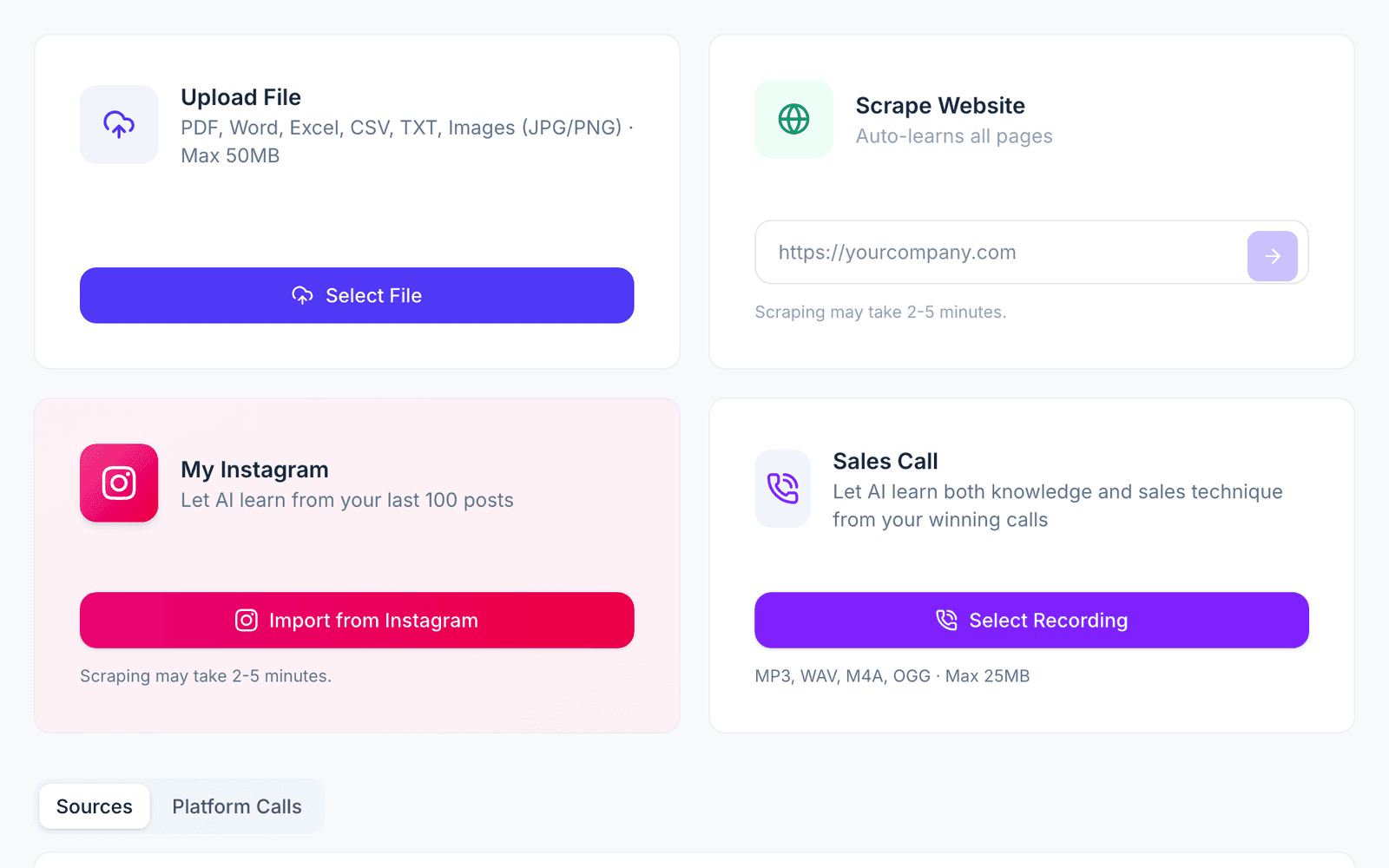
Upload files (PDF, Word, Excel, CSV, TXT or images, up to 50 MB), scan your website (it can take 2 to 5 minutes), import your Instagram profile (your last 100 posts) or add a sales call recording.
 Video for this section (in Turkish) · 2 minKnowledge Base: teach the AI your business once (in Turkish)
Availability, prices and reservations
A price comes from a rate plan defined by date, board and occupancy, and the AI quotes prices only from there. Rate plans cannot be entered in the panel today.
- 1
The AI finds an available room
When a guest gives dates, the AI checks your room types and availability for those dates. If the room is full it suggests other dates.
- 2
It never guesses the price
Without a rate plan for the chosen dates, the AI gives no price, does not guess one and opens no reservation; if the guest wants, it connects them to your team, who give the price.
- 3
Follow reservations and requests
Reservations the AI opens move through "Move to payment", "Mark as paid", "Confirm", "Check in" and "Check out" in the "Reservations" tab. When a guest with a reservation writes a request in the chat, such as housekeeping, towels or a late checkout, the AI records it. It finds the reservation from the booking code the guest gives or, without a code, from the guest’s stay today, and asks which one if the guest has more than one stay today. The request lands in the "Concierge" tab and your team gets a notification; your team moves it along there with "Start" and "Complete".
See the AI’s first reply
- 1
Try it in AI Test
Go to My business › Instructions › AI Test and write the questions your customers ask. Check that the answers use your knowledge base.
- 2
Send a real message
From another phone, send a message to your connected WhatsApp number or Instagram account. The conversation appears under Conversations › Inbox with the AI’s reply.
 Video for this section (in Turkish) · 3 minTrain your AI: knowledge, rules, testing and coaching (in Turkish)
Daily use
- 1
Start from Today and Decisions
Today shows what needs attention. Decisions collects the questions the AI asks you, for example before a cancellation or when it does not know the answer.
- 2
Follow your work in Stays
The Stays room is where your daily work lives. It has the "Properties & Rooms", "Reservations", "Concierge" and "Settings" tabs. Conversations keeps the Inbox, Contacts and the Sales Pipeline.
- 3
Choose how much the AI does
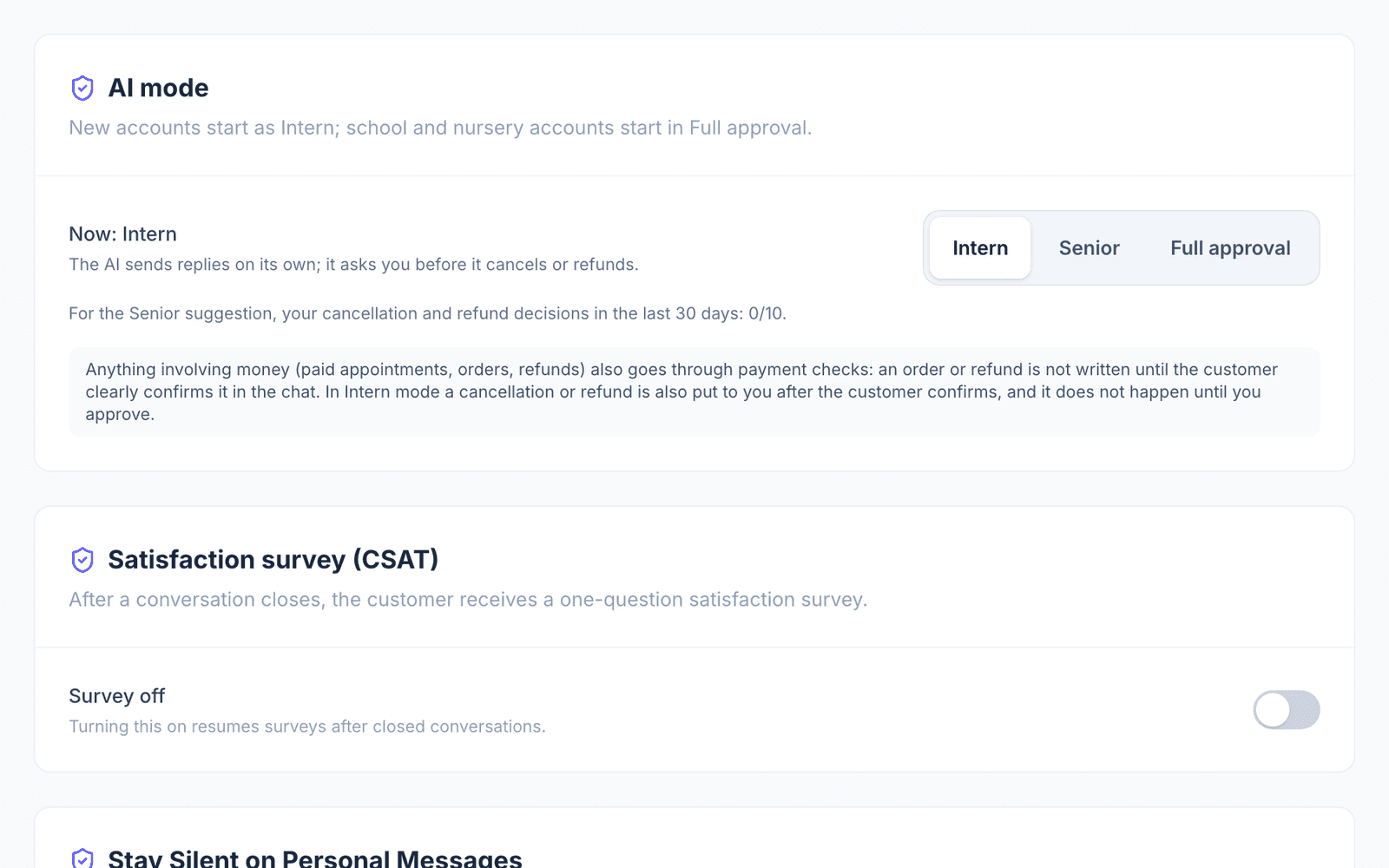
In My business › Instructions › AI Settings, under "How it works", pick the AI mode: Intern (the default) sends replies itself and asks you before a cancellation or refund and when it does not know the answer; Senior also handles cancellations and refunds; Full approval waits for your approval before every reply (email has no approval queue, so the AI does not reply there).
- 4
Take over a single conversation
Inside a conversation you can switch it to Live, Approval, Shadow or Paused. The change applies to that conversation only.
Things to keep in mind
- The stay module is in beta and does not switch on by itself; you turn it on in the "Stay Module" card.
- A price comes from a rate plan, and rate plans cannot be entered in the panel today. For dates without a rate plan the AI gives no price and does not guess one; it connects the guest to your team when they want.
- The AI does not tell guests the "₺/night" price you enter on a room type; that field stays in the panel as a reference.
- Instagram DMs never get a payment link; the AI points the guest to WhatsApp for payment.
Common problems and fixes
- Problem: There is no Stays room in the menu.
- Fix: Check that the module is enabled in the "Stay Module" card on My business › Business Info and click "Save".
- Problem: The AI does not offer rooms.
- Fix: Check that the "Properties & Rooms" tab has at least one property and room type with a room count.
- Problem: The AI offers to connect the team instead of giving a price.
- Fix: This is expected: without a rate plan for the chosen dates the AI does not guess, and it does not give the "₺/night" figure from the room type either. Your team gives the guest the price.
- Problem: Instagram messages are not arriving.
- Fix: Check that the Instagram account is Professional and linked to your Facebook Page; use the "Reconnect" link on Messaging Channels.
Frequently asked questions
Does the AI make reservations?
A reservation needs an exact price, which comes from a rate plan; rate plans cannot be entered in the panel today. For dates without a rate plan the AI opens no reservation and gives no price; it gives availability and connects the guest to your team when they want.
Does the stay module cost extra?
No, it is free on all plans.
What is the "₺/night" price on a room type for?
It shows next to the room type in the panel as a reference. The AI does not tell guests this figure; it quotes prices only from a rate plan.
Where do guest requests go?
To the "Concierge" tab of the Stays room. When a guest with a reservation writes a request in the chat, the AI records it and your team gets a notification; your team moves it along there with "Start" and "Complete".
How do I get paid?
Depending on your payment method, by bank transfer to your IBAN or by card through your property’s iyzico account. The money comes straight to you.
I have more than one property. Is that fine?
Yes. Add each property in the "Properties & Rooms" tab and enter its room types under it.
Related guides and articles
Other industry guides
- E-commerce guideConnect your store so the AI answers product, stock and order questions.
- Clinic guideSet up appointments, reminders and no-show follow-up.
- Tailored setup guideBuild your own setup when no ready-made industry fits.
- Education guideSet up campus tours, group sessions and parent conversations.
- Tour agency guideAdd your tour packages so the AI quotes from the price matrix and opens bookings.
- Beauty and wellness guideSet up appointments, specialist calendars, reminders and group classes.
Stuck on a step? Write to us; a screenshot helps us solve it faster.
Contact us