
Tour agency guide
To use inTusell in a tour agency, create your account, pick the "Tourism & Travel" industry, connect WhatsApp and Instagram, enter your payment method and legal details in the tour module and add your packages with departures and a price matrix. The AI quotes only from the matrix, holds seats and opens bookings; payment goes straight to your agency.
Who this is for
- Agencies that sell Umrah, Hajj, culture and holiday tours
- Booking teams that receive customer questions on WhatsApp or Instagram
- Agencies that keep their packages in KolayTurum
Before you start
- A phone running your business WhatsApp
- Your package departure dates and prices by hotel and room type
- For card payments: the agency’s own iyzico account
Sign up and the setup wizard
The wizard has three steps: Company, Channel and Ready. You can skip the channel step and finish it later in the panel.
- 1
Create your account
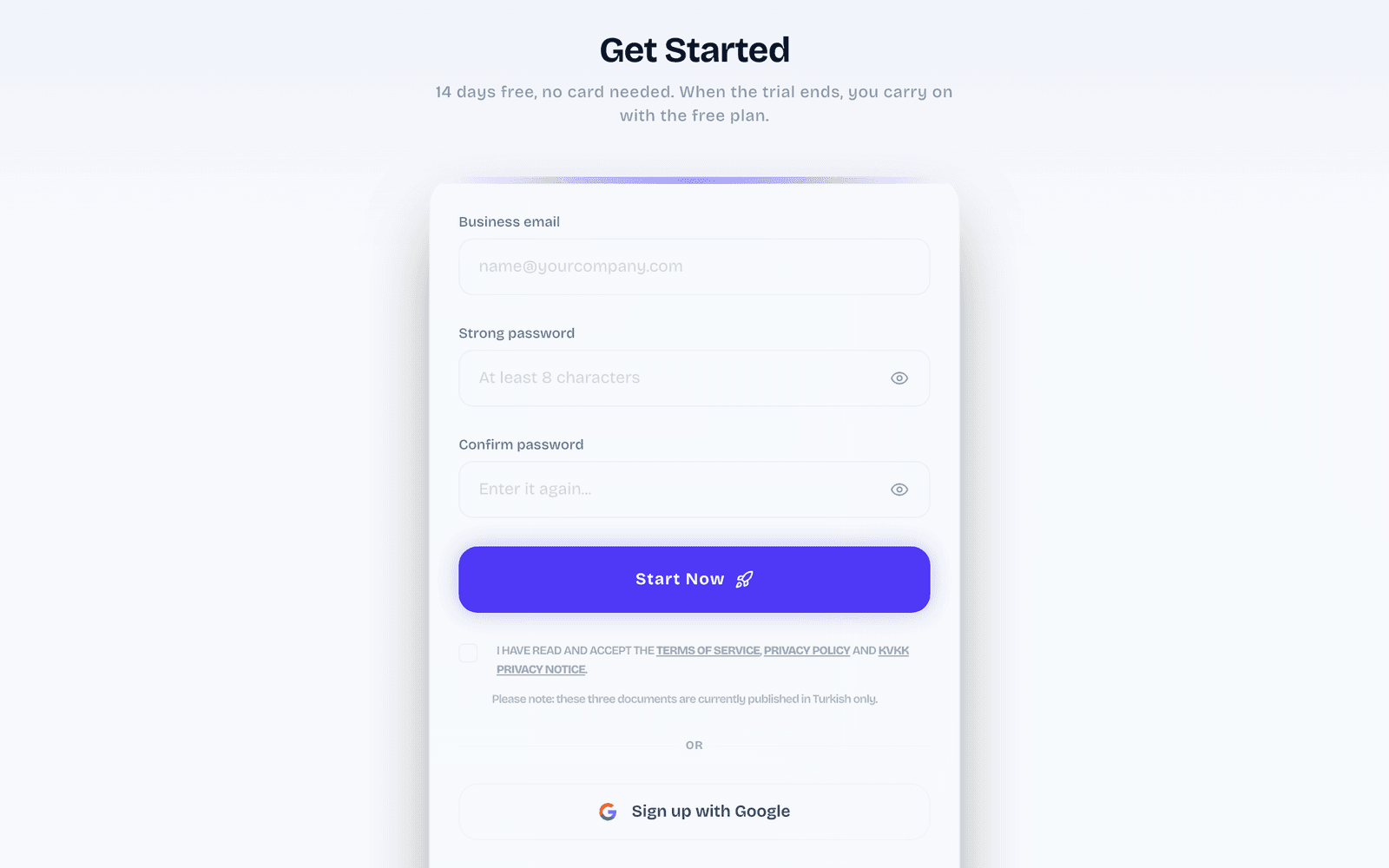
Sign up on intusell.com. Your account opens with a 14 day trial.
- 2
Tell us about your company
On the "Company" step enter your business name and pick "Tourism & Travel" under "Industry". Add your website if you have one: the AI reads it to learn your products, prices and FAQs.
- 3
Connect a channel or do it later
On the "Channel" step pick WhatsApp, Instagram or Web chat. For WhatsApp click "Show the QR code" and scan it with the phone that runs your business WhatsApp; for Instagram click "Connect Instagram" and approve on Facebook; for web chat copy the one-line code (this also turns on your web chat) and paste it into your site. "I’ll connect later" moves on without a channel.
- 4
Review how the AI will talk
The "Ready" step shows the tone, the first message and the priorities of your AI. "Go to the dashboard" opens the panel; "Edit" opens the AI settings.
Connect your channels
- 1
WhatsApp with QR
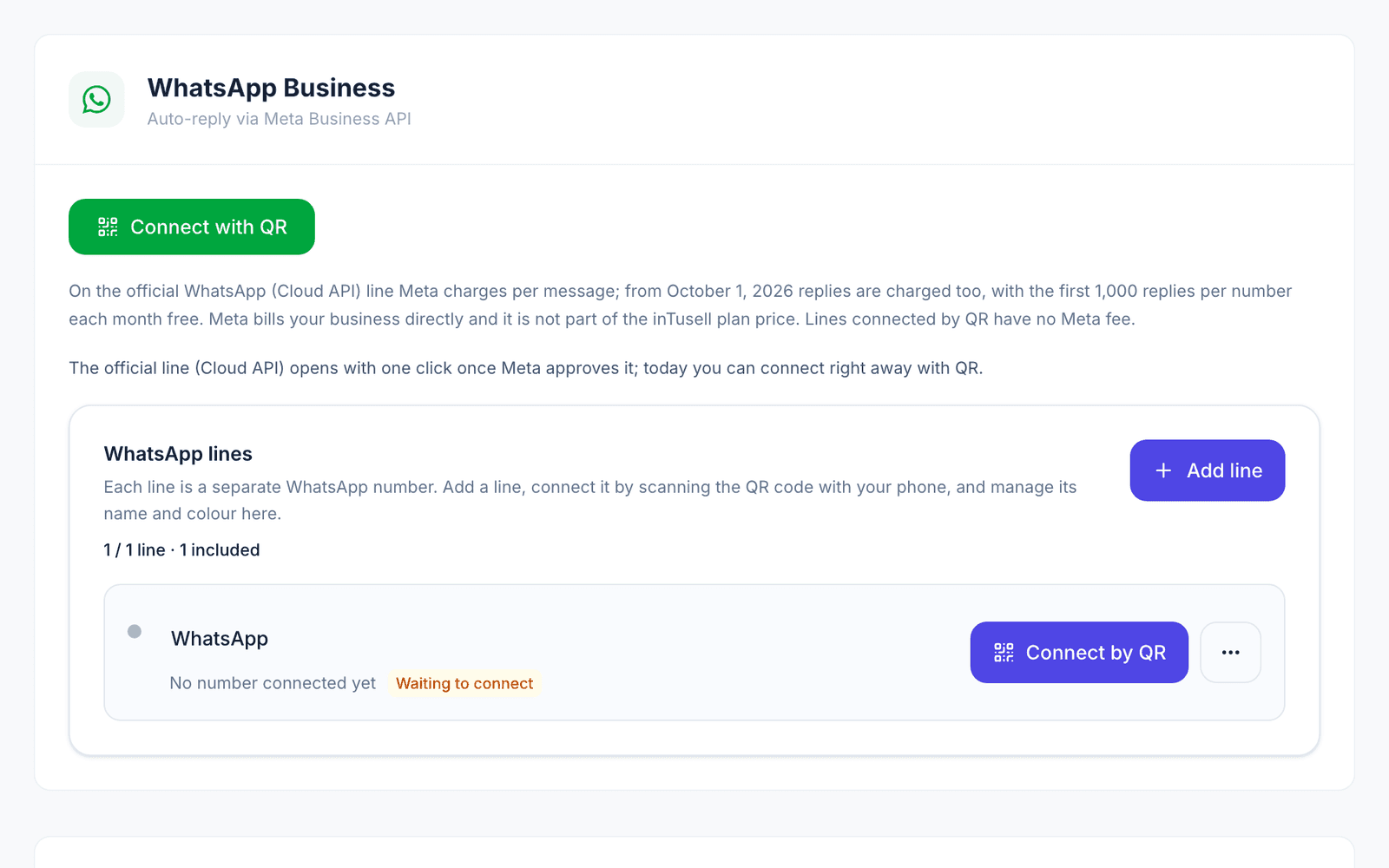
Go to My business › Channels › Messaging Channels and click "Connect with QR". On your phone open WhatsApp › Settings › Linked devices › Link a device and scan the code. Your phone keeps working alongside the panel. The official WhatsApp line (Cloud API) opens after Meta approval; today QR is the way to connect.
- 2
Instagram through Meta
On the same page, in the "Meta Platforms" card, click "Connect All" or the "Instagram" tile. Log in with the Facebook account that manages your business Page. In the Meta window tick your Page and your Instagram account, then approve.

- 3
Check the connection
After you return to the panel the Instagram card shows as connected. If a warning appears, it says what is missing and has a "Reconnect" link.
Tour module and payment
In the Tourism & Travel industry the tour module is switched on at setup. Its settings are in the "Tour Module" card on My business › Business Info.
- 1
Pick the payment method
Under "Payment method" pick "IBAN / Bank transfer (no integration needed)", "iyzico POS (card)" or "Both". Enter your IBAN for transfers or the agency’s iyzico credentials for cards, then try them with "Test connection".
- 2
Add your legal details
Enter the agency’s legal name, your TÜRSAB licence number and the links to your pre-information form, distance sales contract and privacy notice, then click "Save". With a distance sales contract link, the customer sees a confirmation page with the documents before paying. Write your cancellation terms into the pre-information form and the distance sales contract, and add them to the knowledge base too so the AI can relay them.
Tour packages and the price matrix
- 1
Add a package
In the "Tour Packages" tab of the Bookings room, click "New package". To save it, "Title" on the form’s "Basics" tab is enough; "Days", "Nights", "Min. participants", "Summary (AI hook)" and "Description" are optional. If the save does not go through, the form stays open and says why. If your packages are on your website you can also add them with "Import from web".
- 2
Enter hotels, departures and prices
In the package form, first add your hotels with their city on the "Hotels" tab using "Add hotel". Then on the "Departures" tab fill in "Departure date", "Return date" and "Capacity" for each departure. If a hotel is missing its name or city, or a departure its dates or capacity, the package is not saved and the missing field is shown next to the row. "Price Matrix" opens once both are filled: enter the per person price in the package currency for each hotel and room type. "Currency" on the "Basics" tab sets it, and the note under the matrix shows it.
- 3
Publish
The AI only offers published packages. Publish drafts one by one with "Publish" or all at once with "Publish all drafts".
KolayTurum connection
If your packages are in KolayTurum you do not need to enter them by hand.
- 1
Set up the connection
On My business › Channels › Agency Integrations, enter your "Company ID", username and password in the "KolayTurum Connection" card and try them with "Test connection". Then tick "Connection active" and click "Save"; the test does not save your details.
- 2
Sync your packages
With "Connection active" ticked, "Save" imports your packages at once; after that they refresh on their own every night. To pull them again during the day, click "Sync now"; this button turns on once the connection is saved and active. With "Auto-publish imported items" on, packages go live directly; with it off they wait as drafts. Pick it before "Save" so it applies to the first import.
Fill the knowledge base
The AI answers from your knowledge base. Add your tour programmes, what is and is not included in the price, your cancellation terms, visa and document requirements, your TÜRSAB licence number and FAQs.
- 1
Open the Knowledge Base
Go to My business › Knowledge › Knowledge Base.
- 2
Add your sources
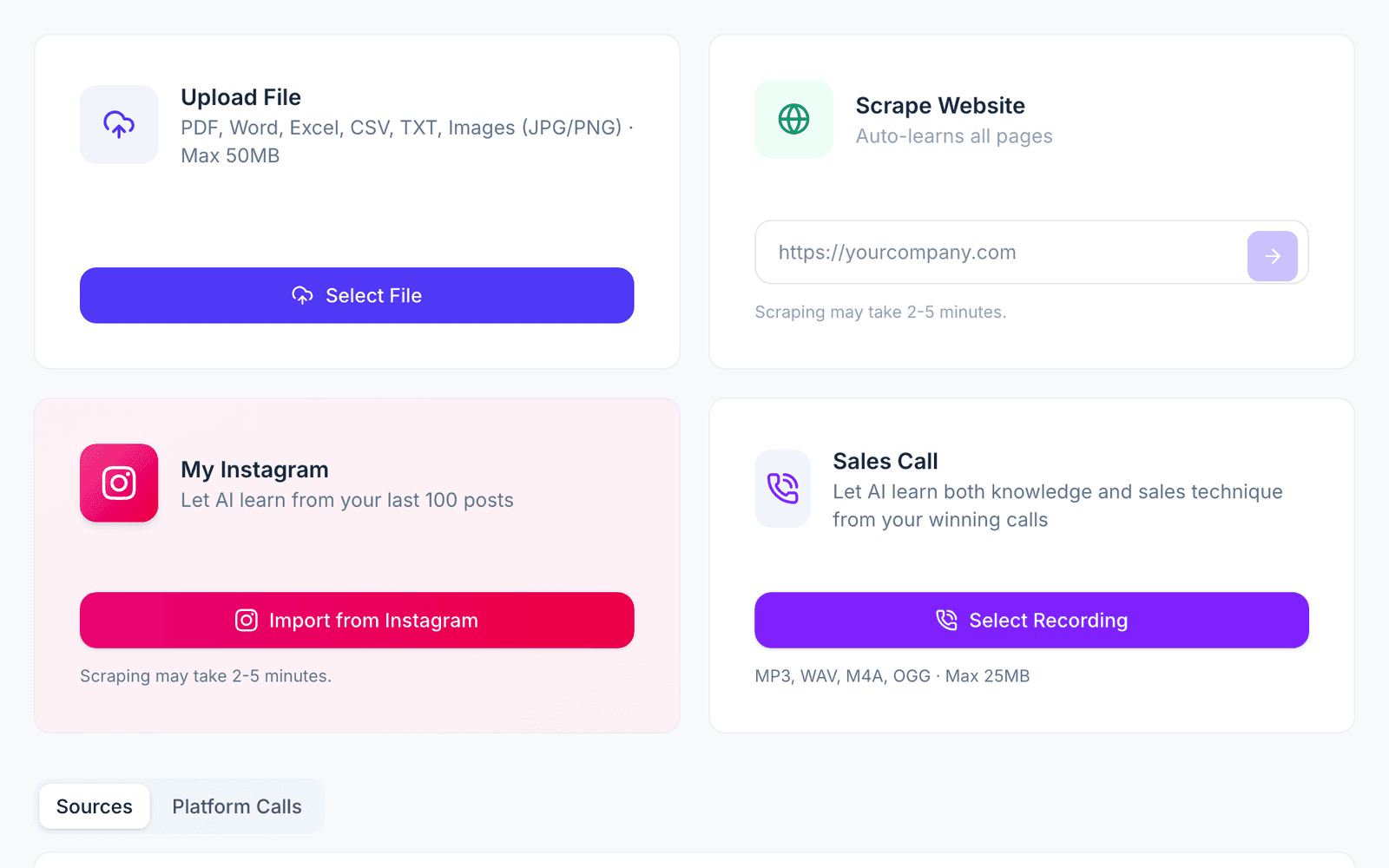
Upload files (PDF, Word, Excel, CSV, TXT or images, up to 50 MB), scan your website (it can take 2 to 5 minutes), import your Instagram profile (your last 100 posts) or add a sales call recording.
 Video for this section (in Turkish) · 2 minKnowledge Base: teach the AI your business once (in Turkish)
Prices, bookings and payment
- 1
The AI quotes from the matrix
When the customer picks a departure, hotel and room type, the AI takes the exact price from the price matrix; it never guesses a price that is not in the matrix. In the panel the matrix takes only the adult per person price. Child and infant prices exist only in packages that come from KolayTurum, when they are set there; for a package without them, the AI gives no price for a request with children or infants and connects the customer to your team when they want.
- 2
Seats are held, the booking opens
Once the customer agrees, the AI asks for their full name and phone number, holds the seats and opens the booking. If a departure is full it offers the nearest departures; there is no waiting list.
- 3
Payment goes to your agency
Depending on your payment method the AI sends a card payment link or your IBAN details, with your own privacy link in the message. When a card payment completes the booking is marked paid, and a confirmation email goes out if the customer’s email is on record. A customer who pays by card sees the result on a page that opens with their booking code after payment. Your team checks bank transfers.
See the AI’s first reply
- 1
Try it in AI Test
Go to My business › Instructions › AI Test and write the questions your customers ask. Check that the answers use your knowledge base.
- 2
Send a real message
From another phone, send a message to your connected WhatsApp number or Instagram account. The conversation appears under Conversations › Inbox with the AI’s reply.
 Video for this section (in Turkish) · 3 minTrain your AI: knowledge, rules, testing and coaching (in Turkish)
Daily use
- 1
Start from Today and Decisions
Today shows what needs attention. Decisions collects the questions the AI asks you, for example before a cancellation or when it does not know the answer.
- 2
Follow your work in Bookings
The Bookings room is where your daily work lives. Bookings move through the lead, option, awaiting payment, confirmed and closed columns; your packages are in the "Tour Packages" tab of the same room. Conversations keeps the Inbox, Contacts and the Sales Pipeline.
- 3
Choose how much the AI does
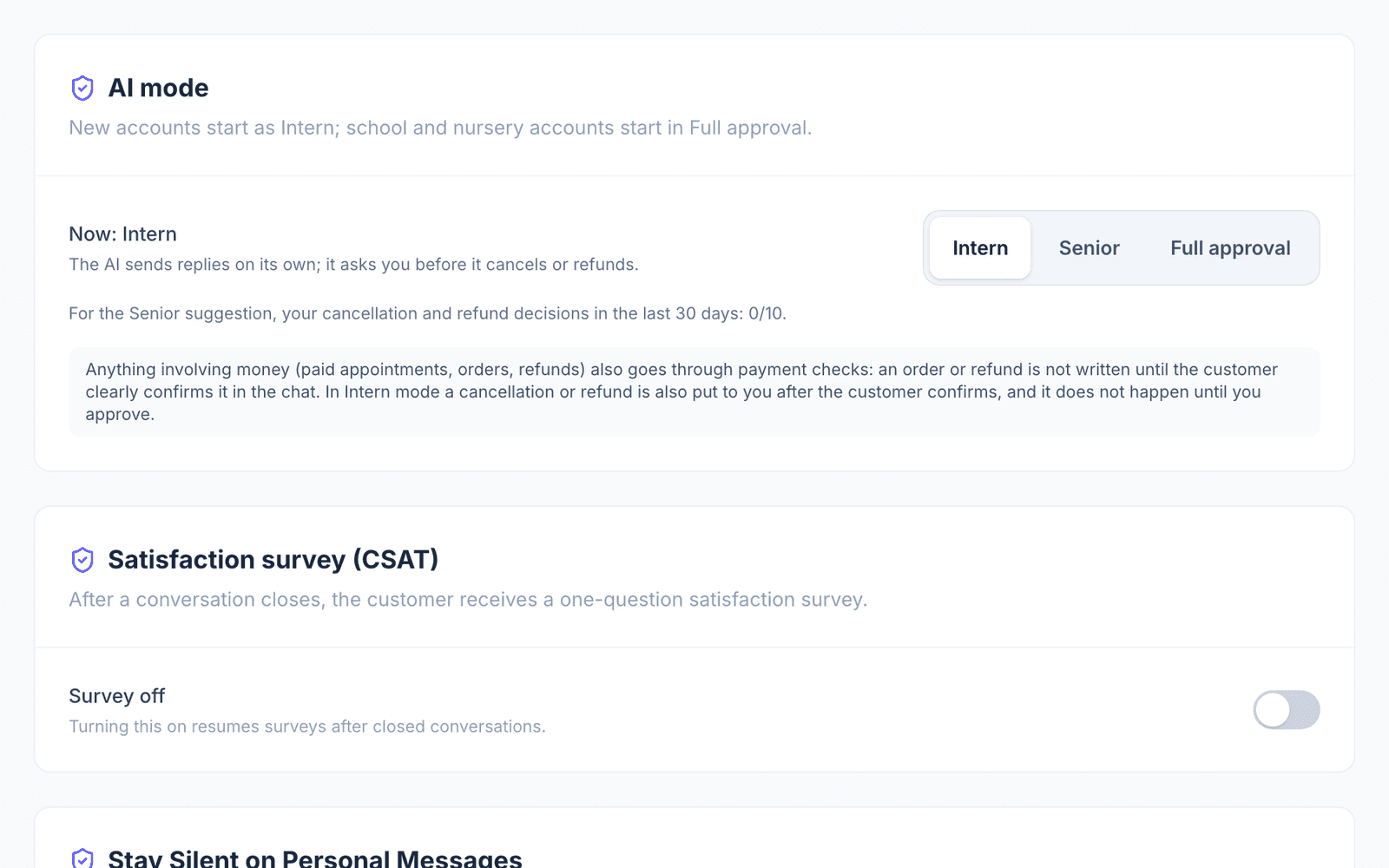
In My business › Instructions › AI Settings, under "How it works", pick the AI mode: Intern (the default) sends replies itself and asks you before a cancellation or refund and when it does not know the answer; Senior also handles cancellations and refunds; Full approval waits for your approval before every reply (email has no approval queue, so the AI does not reply there).
- 4
Take over a single conversation
Inside a conversation you can switch it to Live, Approval, Shadow or Paused. The change applies to that conversation only.
Things to keep in mind
- Tour packages and bookings are in beta.
- The seller is always your agency. If you entered your TÜRSAB number, it shows on the payment result page that opens after a card payment; if you also entered a distance sales contract link, it shows on the contract confirmation page before payment too. It is not added to the chat automatically, so add it to the knowledge base if you want the AI to state it.
- A price change in KolayTurum reaches the panel with the nightly sync; use "Sync now" to pull a same day change at once.
- Instagram DMs never get a payment link; the AI points the customer to WhatsApp for payment.
Common problems and fixes
- Problem: The AI does not offer my package.
- Fix: Check that the package is published and has at least one future departure; the AI never offers a draft.
- Problem: The AI gives no price and offers to connect the team.
- Fix: Check in "Price Matrix" that a price exists for that departure, hotel and room type; an empty cell or a cell set to 0 counts as unpriced. If the request includes children or infants and the package has no child or infant price, this is expected: that price cannot be entered in the panel, the AI does not guess and your team gives the price.
- Problem: The customer got a confirmation page instead of a payment link.
- Fix: This is expected: with a distance sales contract link the customer cannot pay before accepting the documents. After acceptance the card or IBAN details open on the same page.
- Problem: KolayTurum packages are not arriving.
- Fix: Try your details with "Test connection" in the "KolayTurum Connection" card. If "Connection active" is not ticked, tick it and click "Save"; with a saved, active connection click "Sync now".
Frequently asked questions
Does the AI make up prices?
No. The AI quotes only from the price matrix; it never guesses a price that is not there and connects the customer to your team when needed.
Who receives the payment?
Your agency, directly: your IBAN for transfers and the agency’s iyzico account for cards. inTusell is not the seller.
What happens when a departure is full?
The AI offers the nearest available departures. There is no waiting list; the AI hands the conversation to your team when needed.
Can a customer from Instagram pay?
Instagram DMs never get a payment link; the AI points the customer to WhatsApp for payment.
Can I bring my packages from KolayTurum?
Yes. Connect it on My business › Channels › Agency Integrations; packages then refresh on their own every night.
Related guides and articles
Other industry guides
- E-commerce guideConnect your store so the AI answers product, stock and order questions.
- Clinic guideSet up appointments, reminders and no-show follow-up.
- Tailored setup guideBuild your own setup when no ready-made industry fits.
- Education guideSet up campus tours, group sessions and parent conversations.
- Hotel and stay guideTurn on the stay module and add your properties and room types.
- Beauty and wellness guideSet up appointments, specialist calendars, reminders and group classes.
Stuck on a step? Write to us; a screenshot helps us solve it faster.
Contact us