
Law office guide
To use inTusell in a law office, create your account, pick the "Hukuk Bürosu" type under "Consulting" and connect WhatsApp and Instagram. AI answers consultation requests; its instructions keep it from commenting on the specific case. The Office module for case files, hearings and deadlines is in a pilot program, opened on request; each lawyer links their own Telegram.
Who this is for
- Law offices and lawyers who receive consultation requests on WhatsApp, Instagram or web chat
- Offices that want hearings, deadlines and expenses in one place (the Office module is in pilot)
- Lawyers and office staff who want hearing and deadline reminders on Telegram
Before you start
- A phone running your business WhatsApp
- A document or web page with your practice areas, working hours, address and consultation process
- For the Telegram team assistant: the Office module opened for you in the pilot, and Telegram on each lawyer’s phone
Sign up and the setup wizard
The wizard has three steps: Company, Channel and Ready. You can skip the channel step and finish it later in the panel.
- 1
Create your account
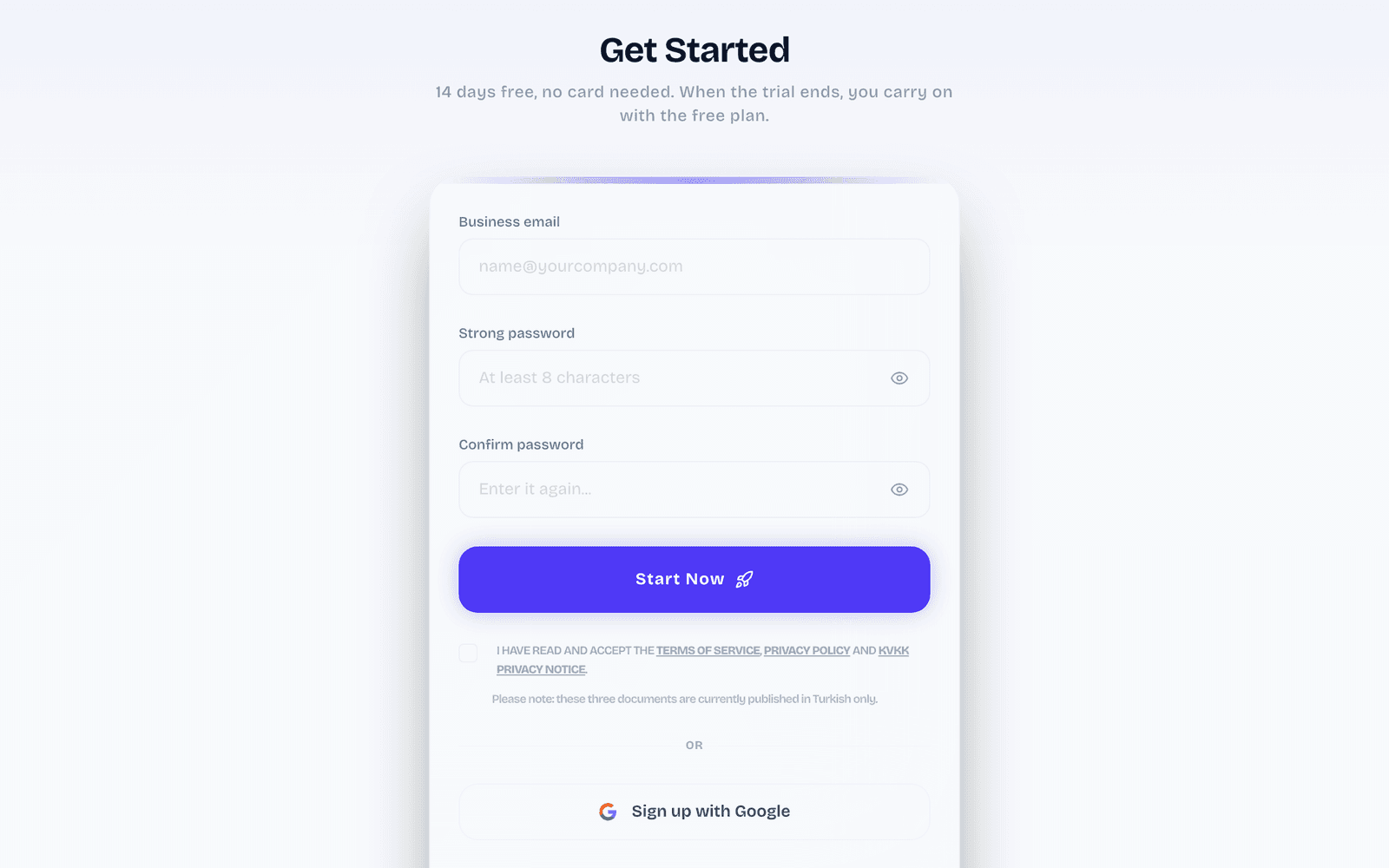
Sign up on intusell.com. Your account opens with a 14 day trial.
- 2
Tell us about your company
On the "Company" step enter your business name and pick "Consulting" under "Industry". Add your website if you have one: the AI reads it to learn your products, prices and FAQs.
- 3
Pick the Hukuk Bürosu type
When you pick "Consulting", a "Consultancy type" field opens on the "Company" step, right below the "Industry" field. Pick "Hukuk Bürosu" there. The AI’s tone, first message and consultation rules are set up for a law office, and the Office module is offered only for this type.
- 4
Connect a channel or do it later
On the "Channel" step pick WhatsApp, Instagram or Web chat. For WhatsApp click "Show the QR code" and scan it with the phone that runs your business WhatsApp; for Instagram click "Connect Instagram" and approve on Facebook; for web chat copy the one-line code (this also turns on your web chat) and paste it into your site. "I’ll connect later" moves on without a channel.
- 5
Review how the AI will talk
The "Ready" step shows the tone, the first message and the priorities of your AI. "Go to the dashboard" opens the panel; "Edit" opens the AI settings.
Connect your channels
- 1
WhatsApp with QR
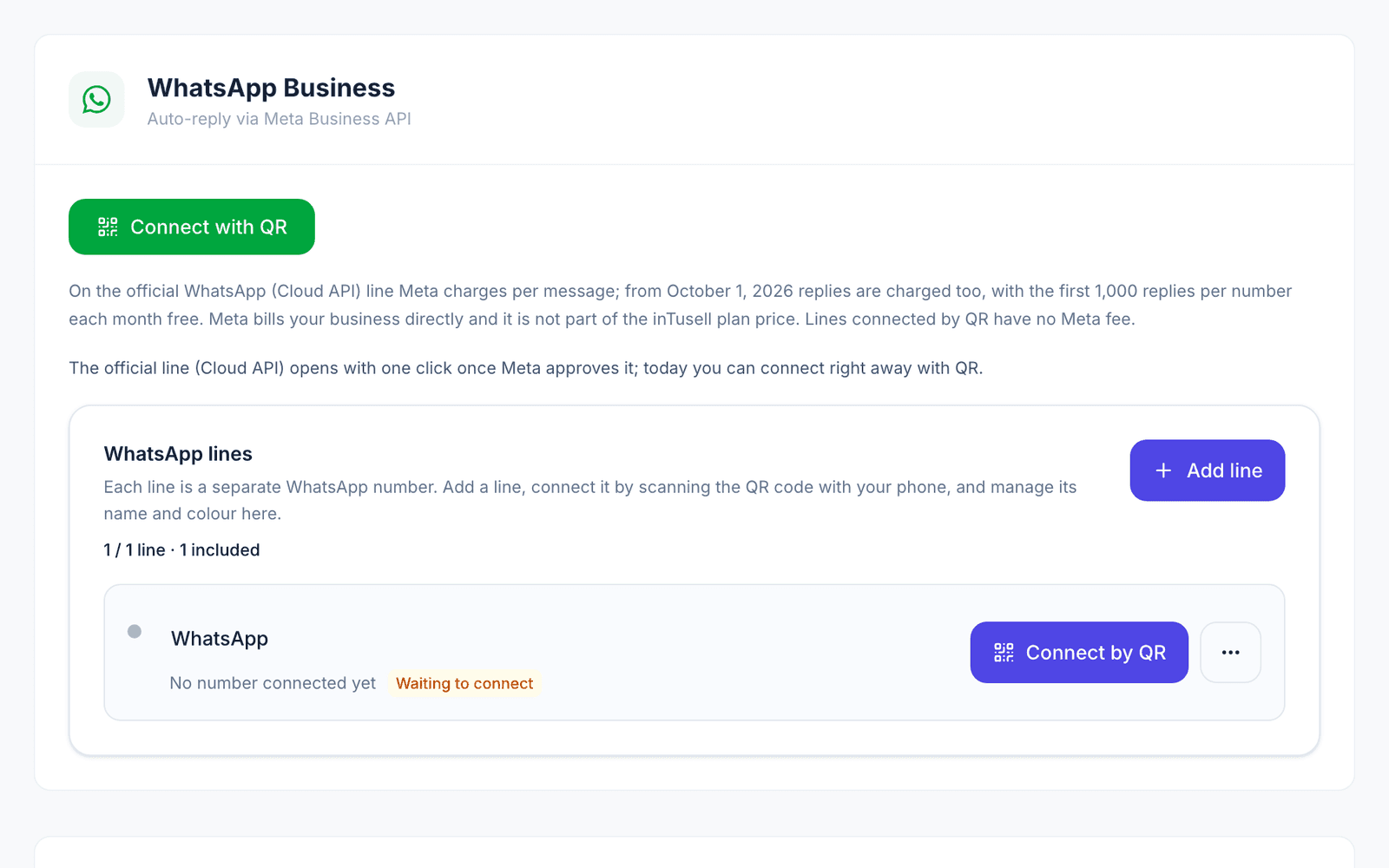
Go to My business › Channels › Messaging Channels and click "Connect with QR". On your phone open WhatsApp › Settings › Linked devices › Link a device and scan the code. Your phone keeps working alongside the panel. The official WhatsApp line (Cloud API) opens after Meta approval; today QR is the way to connect.
- 2
Instagram through Meta
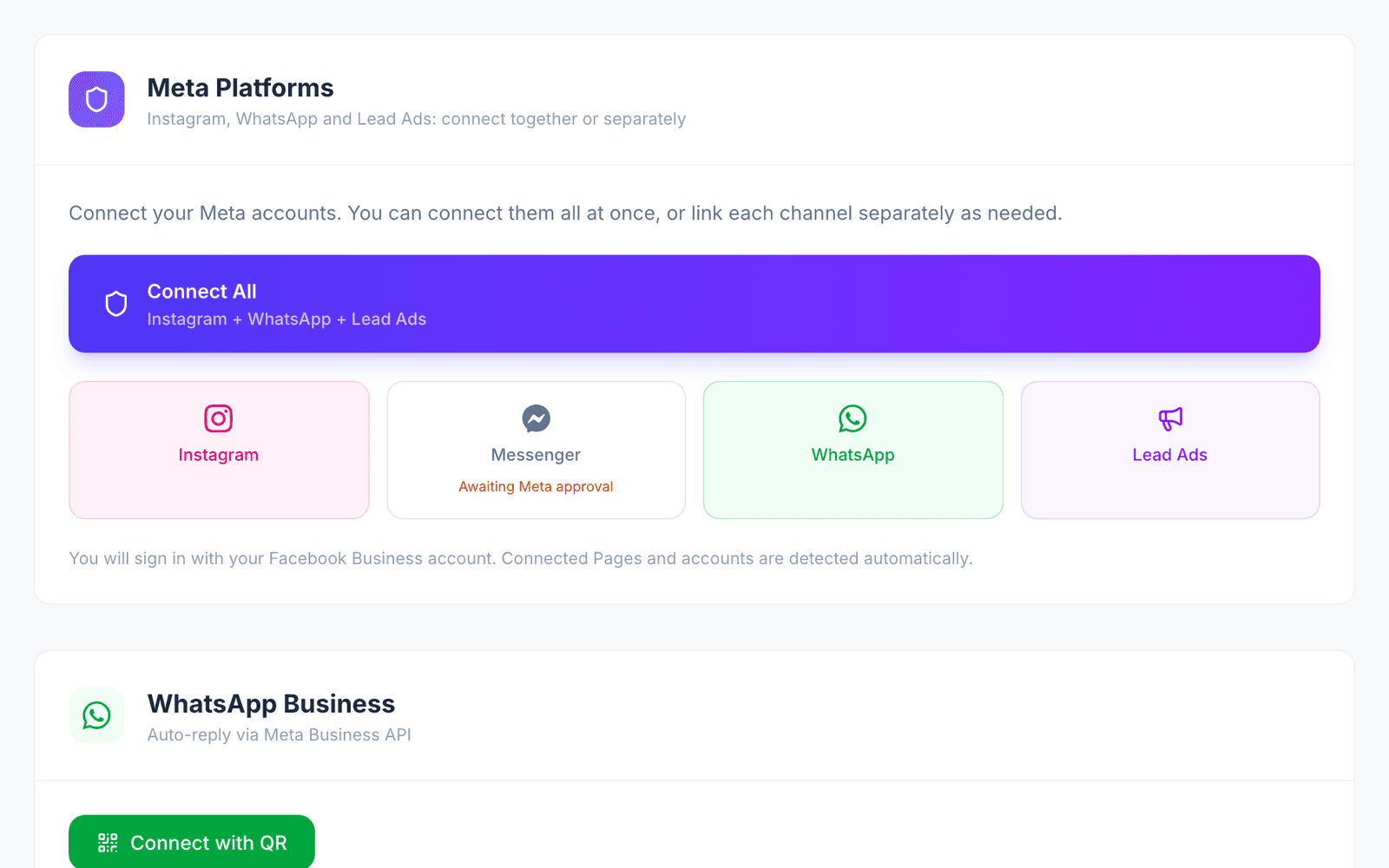
On the same page, in the "Meta Platforms" card, click "Connect All" or the "Instagram" tile. Log in with the Facebook account that manages your business Page. In the Meta window tick your Page and your Instagram account, then approve.
- 3
Check the connection
After you return to the panel the Instagram card shows as connected. If a warning appears, it says what is missing and has a "Reconnect" link.
Fill the knowledge base
The AI answers from your knowledge base. Add your practice areas, working hours, address, consultation process and fee principles.
- 1
Open the Knowledge Base
Go to My business › Knowledge › Knowledge Base.
- 2
Add your sources
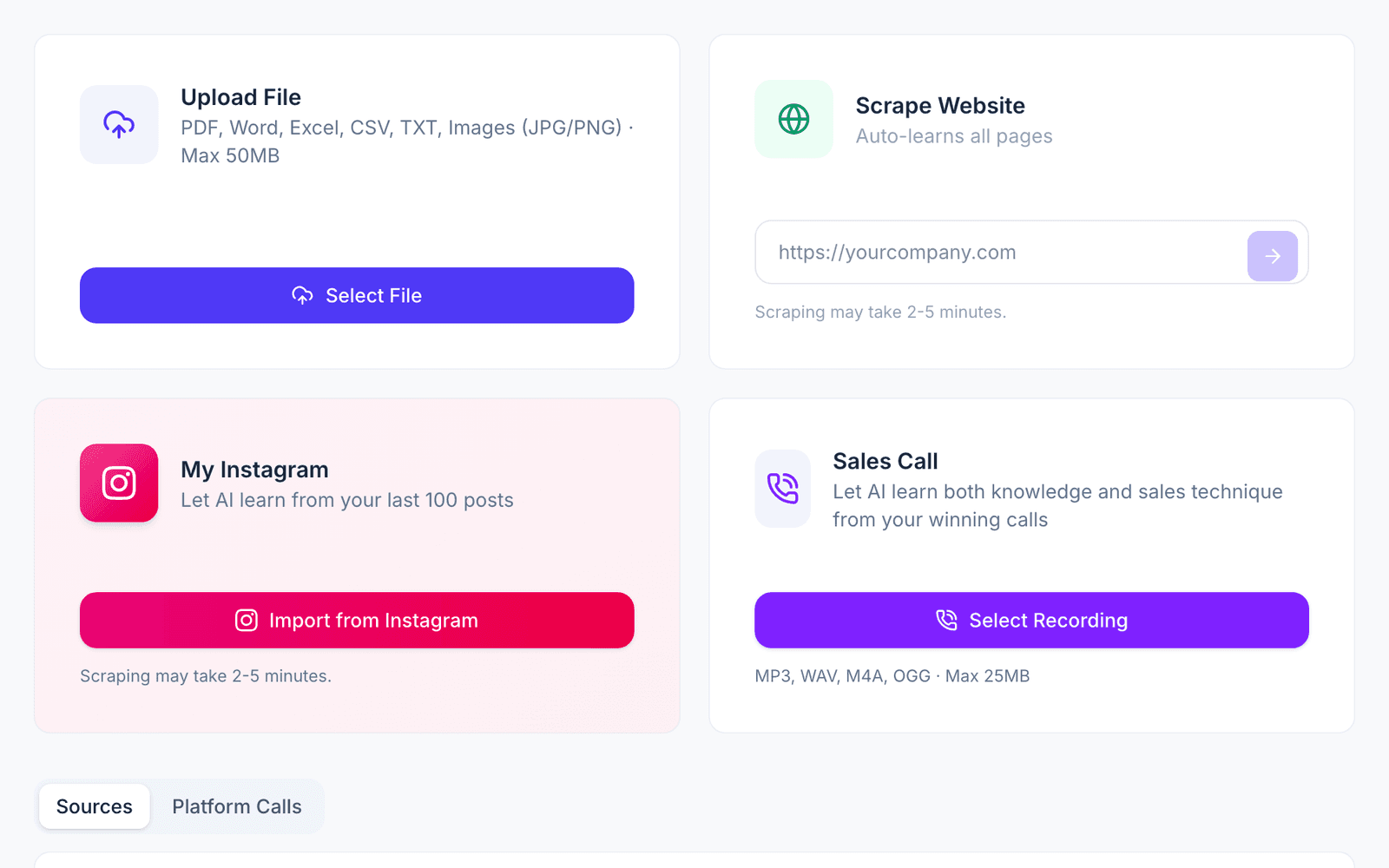
Upload files (PDF, Word, Excel, CSV, TXT or images, up to 50 MB), scan your website (it can take 2 to 5 minutes), import your Instagram profile (your last 100 posts) or add a sales call recording.
 Video for this section (in Turkish) · 2 minKnowledge Base: teach the AI your business once (in Turkish)
Rules for talking with prospective clients
A law office setup gives the AI rules for consultation requests. Still check its replies in AI Test.
- 1
No comment on the specific case
Its instructions keep the AI from commenting on the specific case, giving odds of winning or promising outcomes; it gets the gist and points the person to a meeting with a lawyer. If a legal-opinion sentence is caught in a reply, that reply is not sent; a reply pointing to the lawyer goes instead.
- 2
No fee amounts
The AI does not quote fee amounts or negotiate. It says fees are set by the Turkish minimum attorney fee tariff and a written engagement agreement, and that exact details are given in the consultation.
- 3
No deadline maths, no document requests
If the person mentions a served notice, an objection period or an enforcement proceeding, the AI does not calculate deadlines and says the matter may be urgent. It does not ask for documents, ID details or file numbers on its own.
Get the Office module opened
The Office module covers the Files page, the Telegram team assistant, hearing and deadline reminders and the morning summary. It is in a pilot program, opened on request.
- 1
Apply for the pilot
Write to us through the "Talk to sales" button on the law firms page or through the contact page. The inTusell team opens the Office module and the Telegram team assistant on your account.
- 2
Check that it is on
Once it is on, "Files" appears in the menu. The "Files module" card on My business › Business Info shows the module state. During the pilot the inTusell team turns the module on; as the account owner or an admin you can turn it off yourself from the card. Turning it off deletes nothing; files, documents and the ledger are kept.
The Files page
- 1
Open your first file
On the "Files" page click "New file". Only the title is required; you can add the type (Lawsuit, Enforcement proceeding, Mediation, Advisory or Other), docket number, court, client, responsible lawyer and parties later. Save with "Create file".
- 2
Put hearings and deadlines on the calendar
On the file’s "Calendar" tab click "Add event", pick the event type (such as Hearing, Deadline or Note) and enter the date and time. With no time the event counts as all day. Upcoming events sit on top, past events and notes below.
- 3
Add documents, expenses and tasks
On the "Documents" tab use "Upload documents" to add PDFs, images or office documents of up to 20 MB each; for a lawsuit, enforcement proceeding or mediation case, the "Required documents" list shows the documents still missing for that case type. On the "Expenses" tab record entries with "Add expense" and "Add advance"; the "Balance" follows. Entries cannot be edited later; a wrong entry is corrected with "Reverse". On the "Tasks" tab use "Add task" to give work to a teammate.
- 4
Filter your own files
"My files" shows only the files where you are the responsible lawyer. The search box looks for titles, numbers or names.
Connect the Telegram team assistant
The link is personal: each lawyer connects their own Telegram account. The card appears once the Office module is opened for you in the pilot.
- 1
Open the Notifications page
On My business › Team › Notifications find the "Telegram team assistant" card. Members with the viewer role cannot connect Telegram at all.
- 2
Agree and connect
Tick the box on the card: your messages to the assistant and the summaries it sends pass through Telegram servers outside Türkiye. Then click "Connect Telegram".
- 3
Tap Start in Telegram
Telegram opens; tap Start. If it does not open, use the "Open in Telegram" link. The link is valid for 15 minutes and works once. Back in the panel click "Refresh status"; the card shows your connected account.
What you can do with the assistant
Type a command or tap a menu button. Actions that change a record show a confirmation card first; nothing happens until you confirm.
- 1
See your day and tasks
The first command shows the summary of today, the second your open tasks, the third the help menu and the command list.
/bugun/gorevler/yardim - 2
Look at your files
The first command shows the open files you are responsible for, the second this week’s items.
/dosyalar/buhafta - 3
Record expenses and send documents
The first command records an expense on a file; the second asks you to send a photo or a PDF.
/masraf/evrak - 4
Ask a question
You can write questions about your business or send a voice message.
Send documents and receipts
- 1
Send the photo or PDF
Send the assistant a photo or PDF of hearing minutes, a decision or a receipt, up to 20 MB each. The assistant guesses the document type and suggests up to three matching files.
- 2
Check the amount on a receipt
For a receipt the assistant shows the amount it read before you choose a file. If the amount is wrong, just type the right one; if it cannot read it, it asks you to type it.
- 3
Choose the file
When you tap a suggested file, the document goes to that file and the receipt amount to the expense ledger. If no file fits, search with "Another file"; if the type is wrong, tap "Change type"; "Cancel" saves nothing. A document you do not file is deleted within 24 hours.
Morning summary, reminders and task notifications
The settings are on My business › Team › Notifications; each lawyer picks their own.
- 1
Set the morning summary
Turn on "Morning summary" and pick the "Delivery time" (between 07:00 and 11:00). The summary has today’s hearings, deadlines in the next 3 days, clashes today and tomorrow, changes others made to your files in the last 24 hours and your tasks. Nothing is sent when there is nothing to summarise; you can get the same summary any time with the first command.
- 2
Know the reminder times
A hearing reminder comes at 18:00 the evening before and 2 hours before the hearing. A deadline reminder comes 3 days and 1 day before at 09:00 and at 08:00 on the last day. Reminders go to the file’s responsible lawyer and to anyone with an open task on the file; without Telegram they show as a panel notification.
- 3
Clashes and after the hearing
If two of your hearings on the same day are less than 2 hours apart at different places, a warning line is added to the reminder the day before; you can open a task with "Create a task" or tap "OK". 2 hours after a hearing with a set time the assistant asks how it went: "Postponed", "Decision given" or "Leave a note".
- 4
Choose task notifications
With "Task notifications" on, tasks assigned to you, task reminders and changes to records you are responsible for arrive on Telegram. If you turn it off they stay in the panel and in push notifications; hearing and deadline reminders are not affected by this switch.
Personal calendar
Only the hearings and deadlines of the files you are responsible for, and tasks assigned to you, land in your calendar.
- 1
Open the calendar card
From the account menu at the bottom of the sidebar open "Account" and scroll to the "Your calendar" card. The card shows while the Office module is on.
- 2
Connect Google Calendar
In "Connect your Google Calendar" click "Connect with Google" and allow access with your own Google account. Events are written to Google Calendar with their reminders; when a date changes your calendar updates right away.
- 3
Subscribe in Apple Calendar or Outlook
In "Calendar link" click "Create link" and take the address with "Copy". The address is shown only then; save it and do not share it. In Apple Calendar choose New Calendar Subscription from the File menu, in Outlook choose Subscribe from web under Add calendar, and paste the address. Google refreshes subscribed calendars slowly and does not show their reminders; for Google use the previous step.
Quiet hours and privacy
- 1
Quiet hours
Between 23:00 and 07:00 non-urgent notifications are not sent; they wait until morning. The morning summary also arrives at 07:00 at the earliest.
- 2
What is kept and where it travels
Your Telegram chat history is kept for 30 days, then deleted. Your messages to the assistant and its summaries pass through Telegram servers outside Türkiye; you agree to this when connecting. The morning summary shows the file title, time and place, not notes.
- 3
The office decides what to enter
The office decides what to write into files, tasks and the assistant. File titles show in the summary and in calendars; do not put more personal data in a title than needed. You can remove the Telegram link any time with "Remove link" on the Notifications page.
See the AI’s first reply
- 1
Try it in AI Test
Go to My business › Instructions › AI Test and write the questions your customers ask. Check that the answers use your knowledge base.
- 2
Send a real message
From another phone, send a message to your connected WhatsApp number or Instagram account. The conversation appears under Conversations › Inbox with the AI’s reply.
 Video for this section (in Turkish) · 3 minTrain your AI: knowledge, rules, testing and coaching (in Turkish)
Daily use
- 1
Start from Today and Decisions
Today shows what needs attention. Decisions collects the questions the AI asks you, for example before a cancellation or when it does not know the answer.
- 2
Follow your work in Files
The Files room is where your daily work lives. While the Office module is off, this room shows as Appointments. Conversations keeps the Inbox, Contacts and the Sales Pipeline.
- 3
Choose how much the AI does
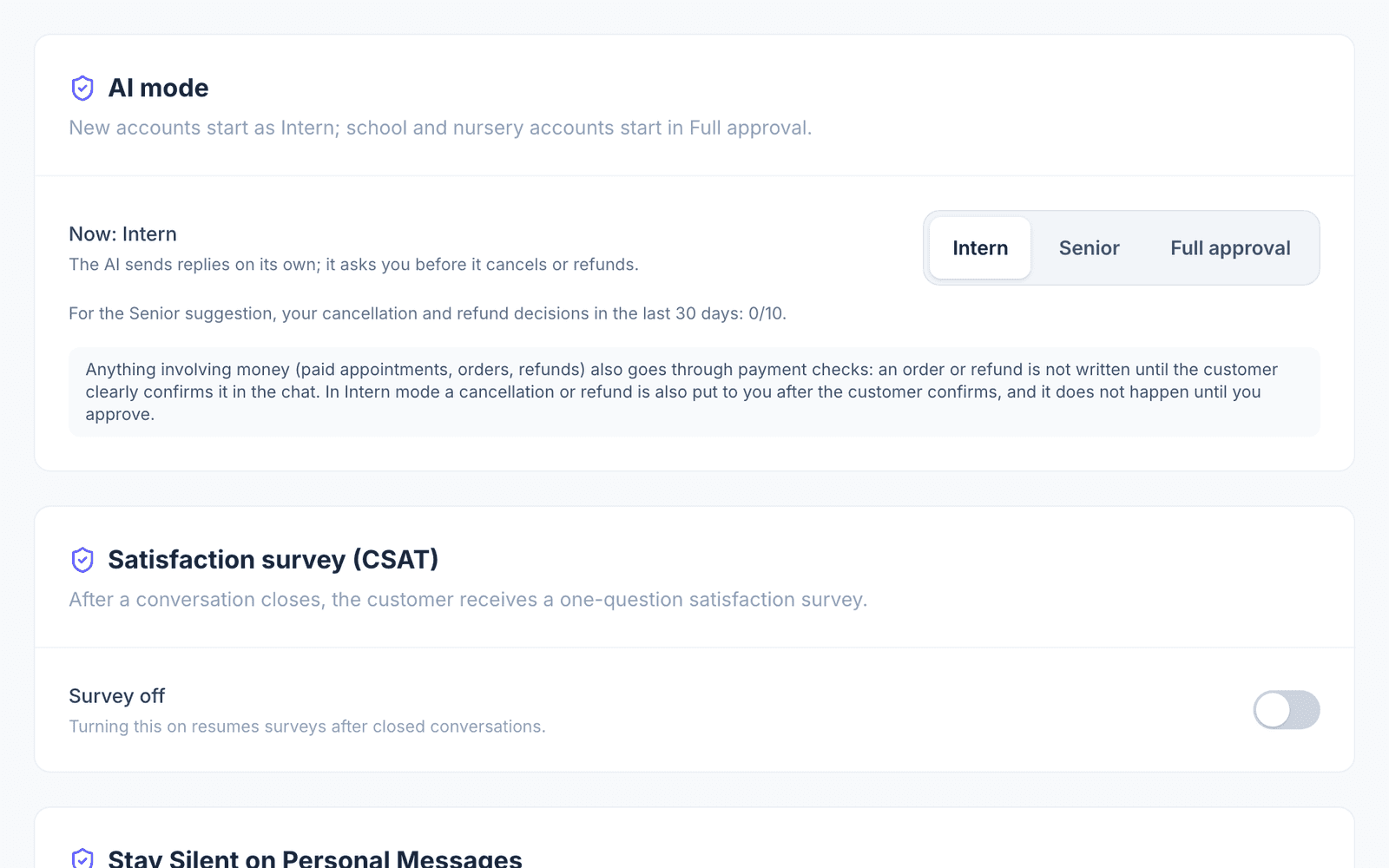
In My business › Instructions › AI Settings, under "How it works", pick the AI mode: Intern (the default) sends replies itself and asks you before a cancellation or refund and when it does not know the answer; Senior also handles cancellations and refunds; Full approval waits for your approval before every reply (email has no approval queue, so the AI does not reply there).
- 4
Take over a single conversation
Inside a conversation you can switch it to Live, Approval, Shadow or Paused. The change applies to that conversation only.
Things to keep in mind
- The Office module is in a pilot program; Files, the Telegram team assistant, reminders and the morning summary are opened on request.
- The AI is set up not to give legal opinions; still check its replies in AI Test regularly.
- The Telegram team assistant does not message clients; reminders and summaries go to your team only.
- Expense and advance entries cannot be edited or deleted later; correct a wrong entry with "Reverse".
Common problems and fixes
- Problem: There is no Telegram card on the Notifications page.
- Fix: The card appears once the Office module is opened for you in the pilot; if it is not, write to us through the "Talk to sales" button or the contact page. If the card says "The team assistant is being prepared.", the assistant is not ready yet; write to us.
- Problem: The Telegram link did not open.
- Fix: The link is valid for 15 minutes and works once. Tick the consent box again and click "Connect Telegram".
- Problem: The morning summary does not arrive.
- Fix: Check that "Morning summary" is on and check the delivery time. On a day with nothing to summarise no summary is sent. If you blocked the bot on Telegram, the card shows a warning; unblock it.
- Problem: The receipt amount was read wrong.
- Fix: Type the right amount before you choose a file. Correct a wrong amount already on a file with "Reverse".
Frequently asked questions
Does the AI give prospective clients legal opinions?
No, its instructions keep it from commenting on the specific case, giving odds of winning or promising outcomes. If a legal-opinion sentence is caught in a reply, that reply is not sent; a reply pointing to the lawyer goes instead.
How do I get the Office module opened?
The Office module is in a pilot program, opened on request. Write to us through the "Talk to sales" button on the law firms page or the contact page; the inTusell team opens the module on your account.
Who gets hearing reminders?
Your team: the file’s responsible lawyer and anyone with an open task on the file. The Telegram team assistant does not message clients.
Where are Telegram messages kept?
Your messages to the assistant and its summaries pass through Telegram servers outside Türkiye; you agree to this when connecting. Your Telegram chat history is kept in inTusell for 30 days, then deleted.
Can I delete an expense entry?
No. Entries are only added to the expense and advance ledger; you correct a wrong entry with "Reverse" and both entries stay in the ledger.
What goes into my personal calendar?
The calendar you connect from the "Your calendar" card gets only the hearings and deadlines of the files where you are the responsible lawyer, and the tasks assigned to you. This is not an access limit: in the panel every member of the office sees every file.
Related guides and articles
Other industry guides
- E-commerce guideConnect your store so the AI answers product, stock and order questions.
- Clinic guideSet up appointments, reminders and no-show follow-up.
- Tailored setup guideBuild your own setup when no ready-made industry fits.
- Education guideSet up campus tours, group sessions and parent conversations.
- Tour agency guideAdd your tour packages so the AI quotes from the price matrix and opens bookings.
- Hotel and stay guideTurn on the stay module and add your properties and room types.
- Beauty and wellness guideSet up appointments, specialist calendars, reminders and group classes.
Stuck on a step? Write to us; a screenshot helps us solve it faster.
Contact us